Appearance
Using Tags to Organize Content
Tags are keywords or labels that categorize questions by topic. They make it easier for community members to find questions related to specific subjects.
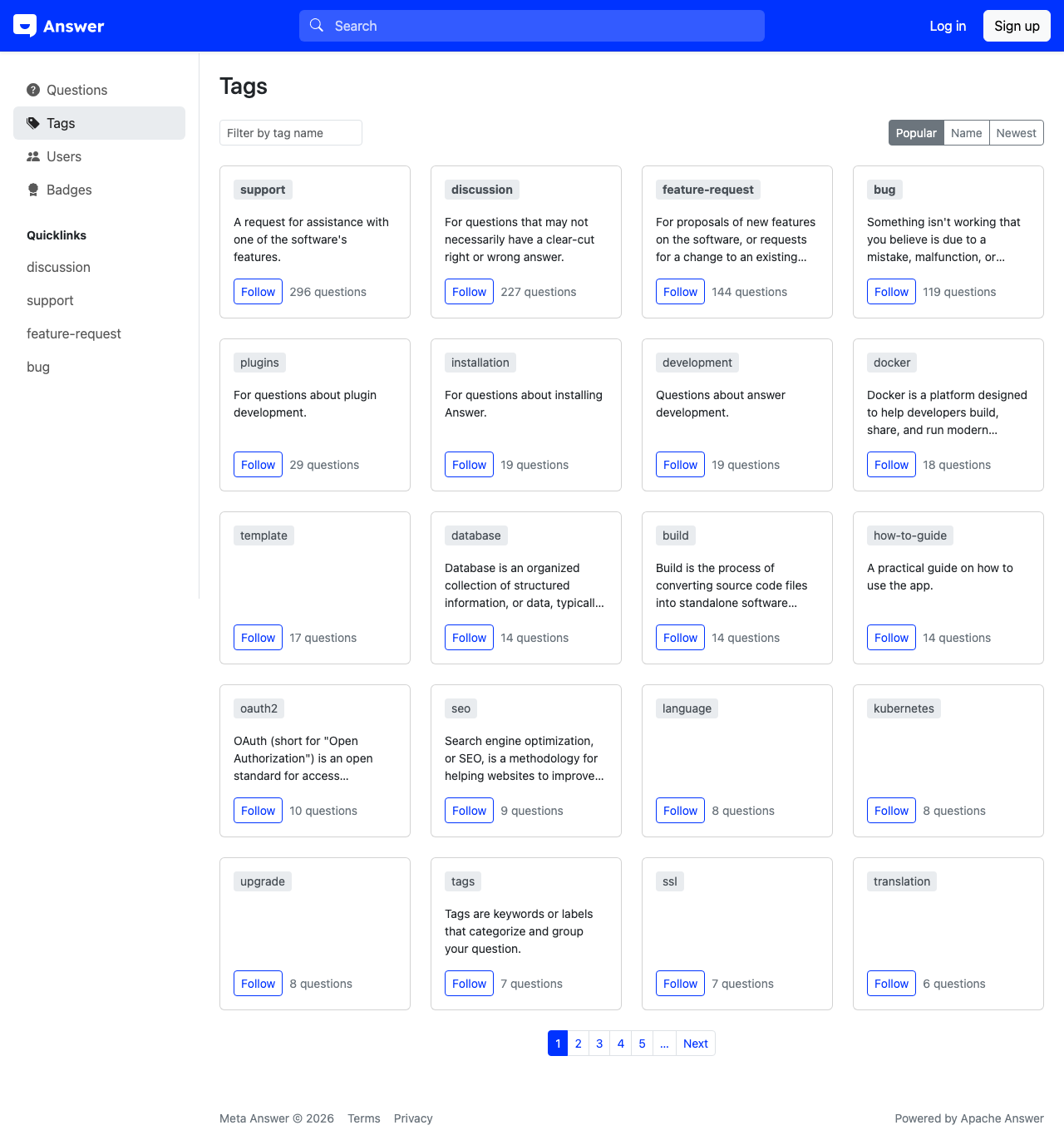
Browsing Tags
Select Tags [1] in the left sidebar to view all available tags. Each tag card displays:
- The tag name
- A description of what the tag covers
- The number of questions associated with that tag
- A Follow button [5] to subscribe to the tag
Sorting Tags
Use the sorting options [2-4] in the top-right corner to reorder tags:
- Popular [2] — Tags with the most questions, giving you an overview of the community's most active topics
- Name [3] — Alphabetical ordering for when you know the tag you're looking for
- Newest [4] — Tags that were most recently created
Following a Tag
Select the Follow button [5] on any tag card to subscribe to that tag. When you follow a tag, questions with that tag will appear more prominently in your personalized feed. You must be logged in to follow tags.
Viewing a Tag's Questions
Select any tag name to see all questions associated with that tag. On the tag detail page, you'll find:
- A Follow button to subscribe to the tag
- A Wiki tab where community editors can maintain a description of the tag's scope and usage guidelines
- The full list of questions with that tag, which you can sort by Newest, Active, Frequent, or Unanswered
Tag Best Practices
When asking a question, add relevant tags to help others find it. Most communities allow between 1 and 5 tags per question. Choose tags that accurately describe the subject matter — this helps community experts who follow those tags find and answer your question.